Installing the Attadale Data Maps – Azure SaaS offering

Welcome to Attadale Data Maps! This guide will walk you through the process of installing our software as a service (SaaS) offering on Microsoft Azure. Attadale Data Maps provides access to a data feed of census and other demographic data which can be explored using a Power BI interface. The data feed is a paid subscription, which can be purchased via the Microsoft store, and is billed per-user per-month. The Power BI interface is provided for free and can be modified by the user without restriction, except for use in commercial tools.

Prerequisites

Before you begin, you will need the following:

  • A Microsoft Azure account
  • Administrator access to the Azure portal OR Office 365 portal
  • (Optional) A Power BI account to use the free visualizations
 

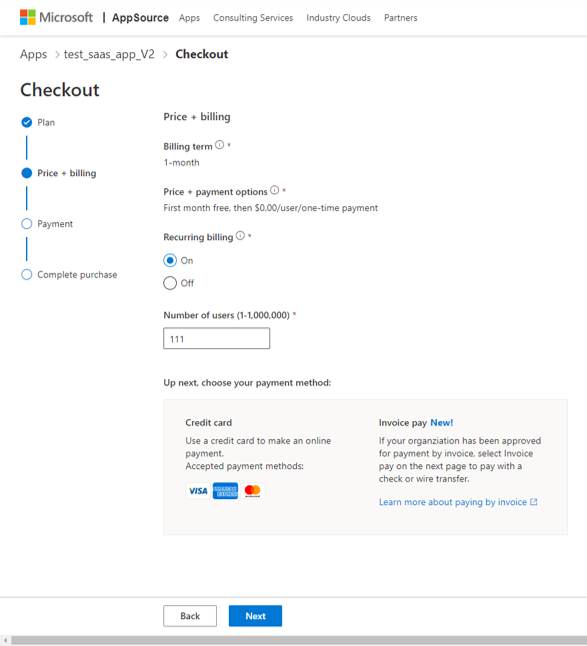
Note: many of the available plans offer a free 30 day trial!
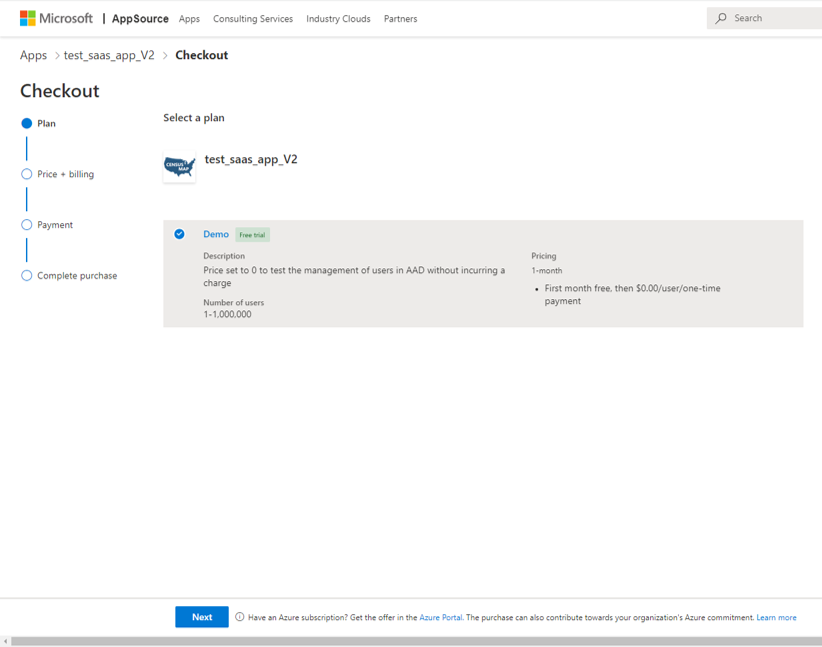
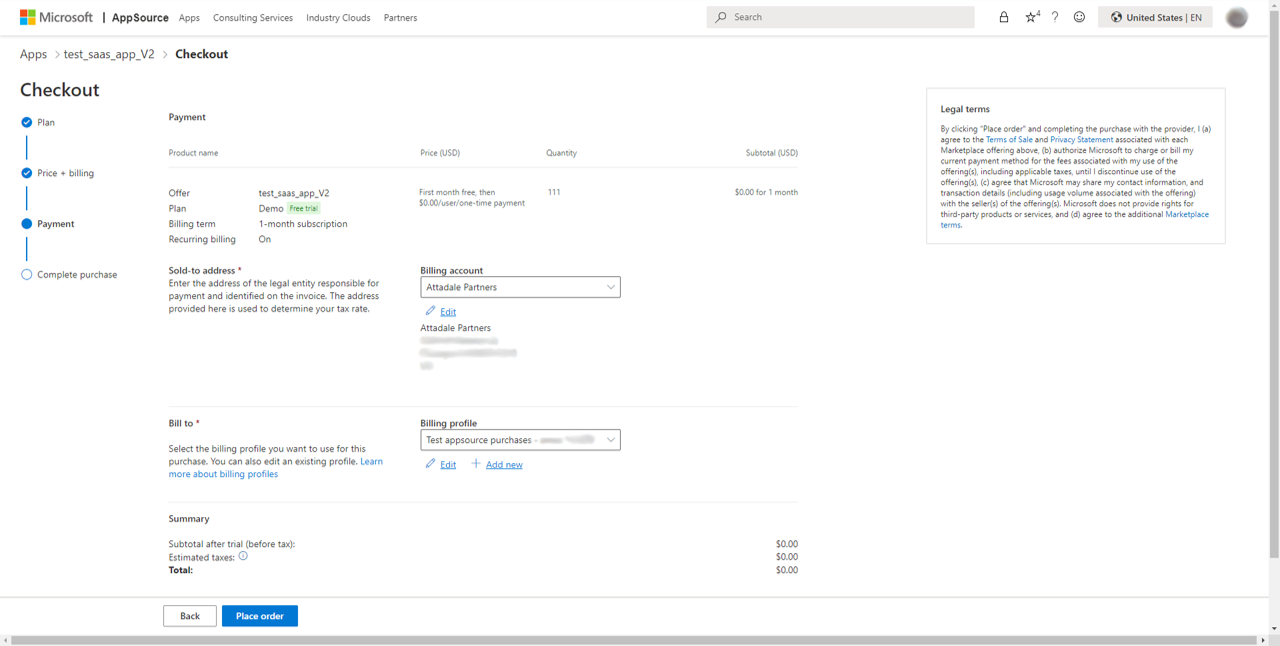
Note: even free trials require a valid payment method, per standard Microsoft requirements
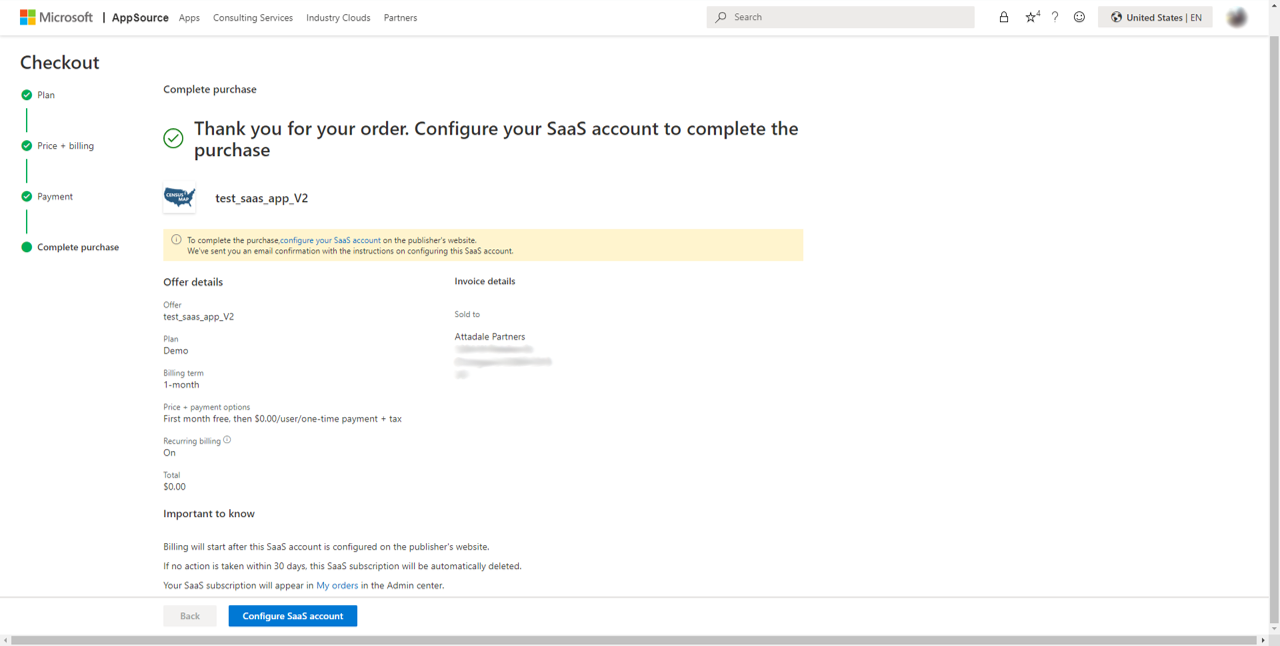
You need to finish the configuration of the app before you can use it – click the “Configure SaaS Account” button at the bottom of the page to proceed the next step.
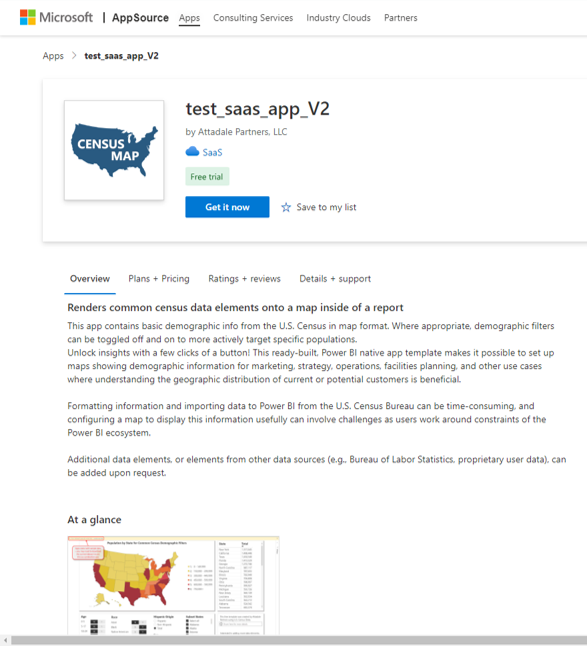
 
Step 2: Activate the Data Feed

To activate the data feed, follow these steps:

  1. Log in to the Attadale Partners portal through any of the following sources:
    1. At the bottom of the final sign-up screen from the prior step
    2. In the Microsoft 365 admin portal (https://admin.microsoft.com) under Billing > Your products
    3. In the Azure portal under your recently purchased SaaS (classic) offering 
    4. If requested, grant permissions to the app (the app needs to be able to read the user identities you want to grant a licenses too).
  2. Review and confirm your subscription details.
  3. Click the “Activate subscription” button below the subscription details

The data feed is now activated!  (Note: activation can take up to 5 minutes.)


Step 3: Assign Users and Administrators

To assign users and administrators, follow these steps:

  1. Log in to the Attadale Partners portal (see point 1 under “Step 2: Activate the Data Feed”).
  2. Click on “Users”  on the top nav bar, and use the UI to grant administrator rights.


Step 4: Install the Power BI App and Connect to the Data Feed

We provide a free Power BI template which interacts with the data feed – see the user guide for more details on using the tool.

You can install this map for users either by copying our template app (recommended), or by downloading the source PBIX file.

  1. Go to the template app HERE
  2. Click the “Install” button to start the installation process.
  3. Once the app is installed, you will be redirected to the “Apps” section, where you can access the app and configure it as needed.
  4. Click the “Connect” button on the page to connect the report to the data source.
  5. Change any of the default parameters you want to alter (these will change the default filters applied to the app at launch), then click “Next”.
  6. Sign into the data feed with your user name and password


The app is now installed and ready to use! You can access it by selecting it from the “Apps” section of the Power BI service.

Need more help?  Fill out our support request form here:
https://forms.office.com/r/mt7YihjTAx
Free ‘Global Real Estate Company’ case study

Get a free printable copy of this case study.